
How to Change Echo360 Playback Speed (Past 2x)
Echo360's player lets you change the playback speed from its own menu, up to 2x. To go faster, you need an extension that sets the video's speed directly and keeps it there, because Echo360's player tends to put its own speed back. LectureSpeed is free, goes past 2x and holds your speed through pause, play and seeks: add it to Chrome, open your lecture, press D.

Works in Chrome and Edge. No account needed.
💻 Open this page on your computer to install.
Echo360's speed menu: 0.25x to 2x
According to Echo360's help center, the player plays video “at .25 (quarter) speed up to 2x speed, or anywhere in between, at .25 intervals”. You pick the value from the player's speed menu. Older versions of the player started at 0.5x, and your university's setup may look slightly different, but 2x is the top of the menu in all of them.
Why speed extensions often don't work on Echo360
Many students try a generic video speed extension and see Echo360 jump back to 1x after a few seconds, or as soon as they press Play. That's because Echo360's player keeps its own speed setting. In our testing, it writes that speed back to the video when you press Play, after a seek, and regularly during playback. An extension that sets the speed once loses it at the next write. Echo360's help center itself notes that the player “cannot support all 3rd party speed controller plugins”.
LectureSpeed is built for this. On Echo360, when the player tries to put its own speed back, LectureSpeed keeps yours, so the lecture doesn't drop to 1x after Play, a pause or a seek. It changes nothing on Echo360's side: it only controls the video in your browser.
How to change Echo360 playback speed past 2x (step by step)
-
1. Add LectureSpeed to Chrome
It's free and needs no account. It also works in Edge. Pin it from the puzzle-piece menu so the popup is one click away.
-
2. Open your Echo360 lecture
Start the recording in Echo360's player.
-
3. Press D to go faster, S to slow down
Each press changes the speed by 0.1x, and R goes back to 1x. You can also open the popup and pick a speed.
-
4. Keep watching
LectureSpeed keeps your speed through pause, play and seeks, so you set it once.
Echo360's speed button still says 1x?
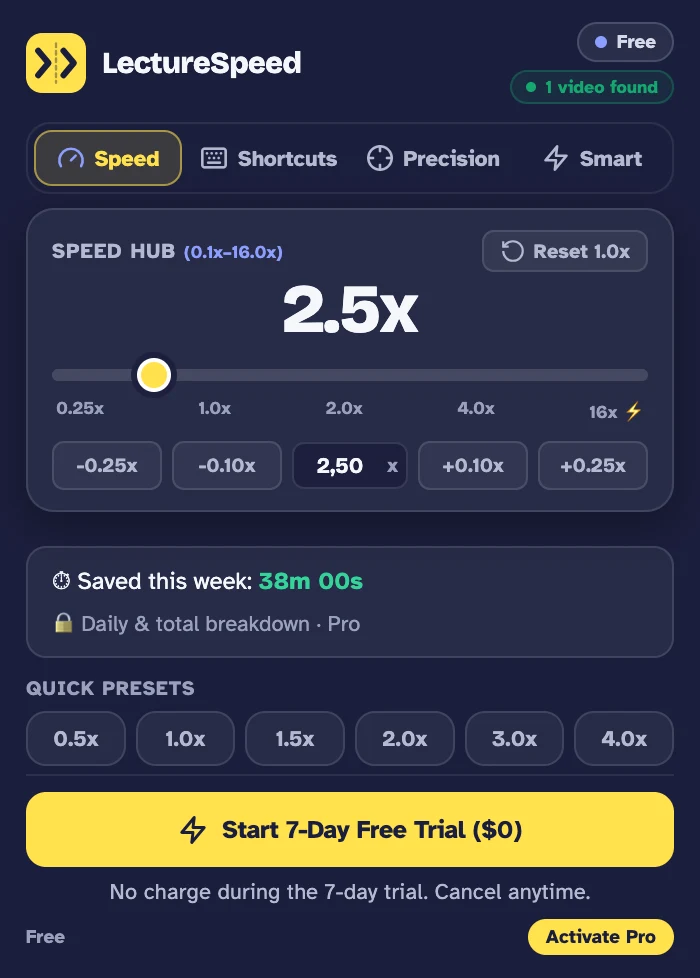
That's normal. The speed button shows the value selected in Echo360's own menu, and LectureSpeed doesn't change that menu: it sets the speed of the video directly. The LectureSpeed badge, in the top-right corner of the video, and the popup show the real speed. If you choose a speed in Echo360's menu, LectureSpeed keeps yours; press R to go back to 1x and hand the speed back to Echo360's player.
What speed should you use?
In a UCLA study (Murphy et al., Applied Cognitive Psychology, 2022), comprehension dropped only slightly at 1.5x and 2x, and more at 2.5x. Start at 2x, add 0.1x with D while you can still follow, and slow down with S on the hard parts. There's more in our guide on the best speed to watch recorded lectures.
Questions
Is LectureSpeed free?
Yes. Going past 2x, the keyboard shortcuts and the time-saved counter are free, with no account. Pro ($4.99 a year, with a 7-day free trial) adds review tools such as bookmarks with notes and the A-B loop.
Why do other speed extensions reset to 1x on Echo360?
In our testing, Echo360's player writes its own speed back to the video when you press Play, after a seek and regularly during playback. An extension that sets the speed only once is overwritten each time. LectureSpeed keeps your speed when the player does this.
What is the highest speed?
LectureSpeed goes up to 16x. At very high speeds the video may not load fast enough to keep up. For lectures, 1.5x to 2.5x is the useful range.
Does LectureSpeed track what I watch?
No. The extension has no analytics and doesn't send the pages or videos you watch anywhere. Its only network request is the check of a Pro license key, if you have one.
Does it work on Panopto?
Yes, including Panopto lectures embedded in Canvas or Moodle. See how to watch Panopto faster than 2x.